Quick Set-Up Guide PL12EN-1004 2011-01

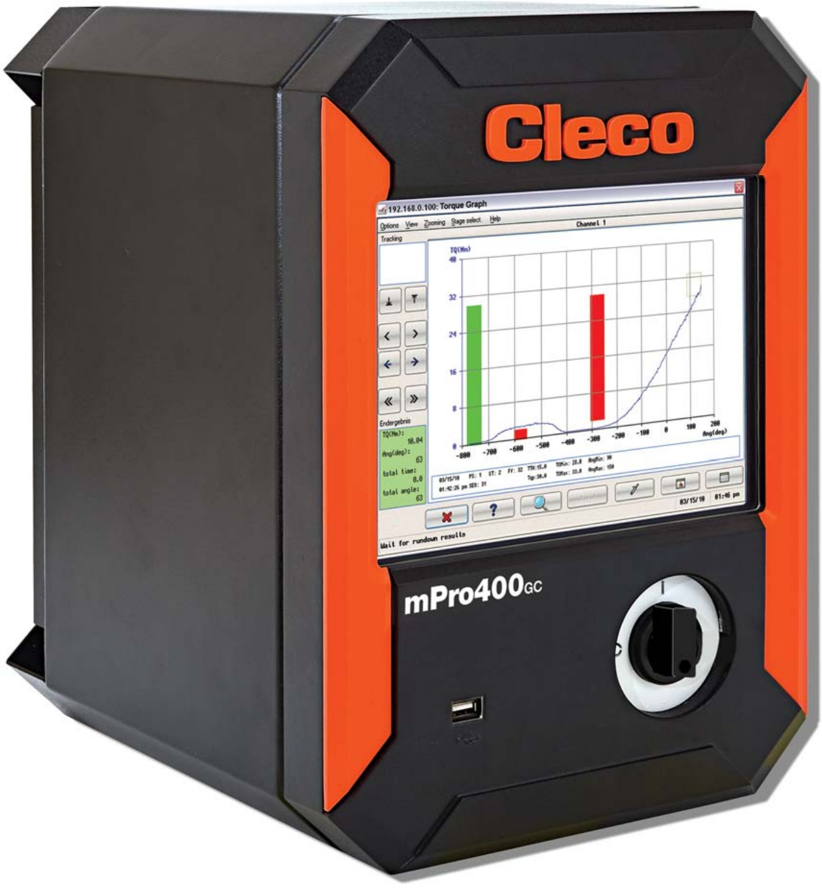
mPro400GC
Global Controller
For additional product information visit our website at http://www.apextoolgroup.com
About this Quick Set-Up Guide
This quick set-up guide is the -- original Quick Set-Up Guide -- and is intended for all persons who configure settings on the mPro400GC controller.
The quick set-up guide does the following:
- describes a quick and facile way to start-up and configure the mPro400GC controller.
- It provides important instructions for safe and effective operation.
The following documents provide additional information for the operation and service of the mPro400GC controller.
- Programming manual, no. PL12EN-1001
- Recovery Installation
- Parts manual, no. PL12-1000EN
- System description, Fastening technology, no. P1730E
Symbols in the text:
| italics | Identifies menu items such as Diagnosis |
|---|---|
| > | Identifies the selection of a menu item from the menu such as File > Print |
| <…> | Identifies elements such as buttons, push button or external keyboard input, e.g. <F5> |
| Courier | Identifies elements such as input fields, checkboxes, radio buttons or drop-down menus. Indicates the name of paths and files, e.g. setup.exe |
| / | Separates the subdirectories of file paths, e.g. file/print (OS9 operating system) |
| • | Identifies lists |
| ➔ | Identifies instructions to be followed |
Disclaimer:
Apex Tool Group reserves the right to modify, supplement or improve this document or the product without prior notice. This document may not be reproduced in whole or in part in any way, shape or form, or copied to another natural or machine-readable language or to a data carrier, whether electronic, mechanical, optical or otherwise, without the express permission of Apex Tool Group.
DGD and Cleco are trademarks of the Apex Tool Group Division.

PL12EN-1004 2011-01
en00d451.fm, 20.07.2011
Workplace safety symbols
Warning notes are identified by a signal word and a pictogram:
- The signal word describes the severity and the probability of the impending danger.
- The pictogram describes the type of danger.
Observe these notes and proceed with special care in the situations described. Pass all safety instructions on to other operators. In addition to the safety instructions in these programming instructions, all local safety and accident prevention rules must be observed.
Indicates a potentially hazardous situation which, if not avoided, could result in death or serious injury.
Indicates a potentially hazardous situation which, if not avoided, may result in minor or moderate injury or property and environmental damage. If this warning is not observed, injuries, property or environmental damage may occur.
This pictogram identifies all references to potential electrical shock, alerting of hazards to life and health of personnel.
This sign warns of a possibly damaging situation.
If the note is not adhered to, the product or parts of it may be damaged.
General notes
include application tips and useful information but no hazard warnings.
WARNING!
CAUTION!
ATTENTION!
NOTE
en01d441_bedingt.fm, 20.07.2011
PL12EN-1004 2011-01
Set-Up Guide
1 Set-Up Guide
1.1 Controller description
The mPro400GC product line consists of three controllers; Master, Primary and Secondary.
- Primary - Controls up to sixteen (16) tools. This unit includes a servo. One (1) standard corded handheld or fixtured tool could directly connect. For further corded tools / fixtured spindles are Secondary controllers required.
- Master - Controls up to sixteen (16) tools. This controller does not include a servo. For corded tools / fixtured spindles are Secondary controllers required.
- Secondary - Controls one (1) corded handheld or fixtured tool. Must be used with a Master or Primary controller.
- Limited to 1 tool
- Additional Hardware necessary. For programming mark Advanced > Controller Settings > Display Mpro Button .
| Controller | Order no. | Controls up to (…) tools | Servo included | Tool compatibility |
|---|---|---|---|---|
| Primary | mPro400GC-P | 16 | 1 | 18-48 AirLB 1) Cordless EC tool DGD-Intelligent-Spindles (BTS Series) 2) |
| Master | mPro400GC-M | 16 | - | Cordless EC tool DGD-Intelligent-Spindles (BTS Series) 3) |
| Secondary | mPro400GC-S | 1 | 1 | 18-48 AirLB 1) |
Fig. 1-1 Controller Description
PL12EN-1004 2011-01
en01d441_bedingt.fm, 20.07.2011
Set-Up Guide
1.2 General Information
It is mandatory that national, state and local safety and wiring standards be followed during installation. These standards take precedence over any information presented in this section.
CAUTION!
To avoid the hazard of electrical shock or burn, the following instructions must be adhered to. Failure to follow these instructions may also cause damage to your unit and void existing warranties.
- Do not energize the unit until all connections have been properly made.
- Equipment must be properly grounded before applying power. Units energized by cord and plug must be connected to an approved and properly grounded receptacle.
- All units must be energized by an isolated line.
- The unit must always be closed and secured prior to energizing the unit.
- Ensure the power switch is in the 'off' position prior to connecting the power cord.
Though it is not mandatory, the following instructions are highly recommended for the protected operation of your unit.
- Use oversized feeder lines to reduce electrical noise and voltage drop.
Mounting the Controller
- Loosen the two long mounting screws at the bottom of the controller so the mounting plate can be separated from the controller. See Fig. 1-16.
- Fig. 1-17 illustrates the bolt pattern for hanging the mounting plate on a wall. Note the hole size dimensions so the correct size bolts are chosen. Size ¼' or M6 bolts (4) should fit the mounting plate holes and support the controller.
- Once the mounting plate is installed in its location the controller can be hung on the bracket utilizing the four studs protruding from the back of the controller. Once in place, the controller can be secured at the bottom using the two long screws removed in Step 1.
Making Connections to the Controller
- Connect the cable to the tool.
- Connect the other end of the cable to the controller. The connector at the controller is an Air-LB connector and utilizes a push-pull style connector. Before attempting to attach the cable verify that the collar on the controller connector is pushed towards the controller. If the collar is pulled away from the controller the cable will not connect to the controller. Insert the cable connector and pull the collar away from the controller (towards the cable) to lock the cable in place.
- Insert the power cord into the controller and into a 115 or 230 VAC power source.
- Using the ON/OFF power switch at the front of the controller power the controller ON.
- Refer to the Programming Manual, PL12-1001EN, for all other connections.
en01d441_bedingt.fm, 20.07.2011
PL12EN-1004 2011-01
Set-Up Guide
1
Accepting a Corded Tool
- When the controller has finished booting up it should advance to the Run screen . The screen is a touch screen. At the lower right corner of the screen press <Navigator>.
- Press Navigator Menu > Tool Setup .
PL12EN-1004 2011-01
en01d441_bedingt.fm, 20.07.2011
Set-Up Guide
- Touch the horizontal bar indicating the Primary tool to highlight it. Touch <Tool Settings>.
- Verify that the tool shown is the tool connected. Check the Model number and Serial Number . If the tool is correct press <Accept>. In the screen that appears press <Accept> for that screen. A screen will appear indicating that the settings are being saved. When the save process is complete, the Tool Setup - Tool List screen is displayed. Press <Navigator>. Advance to 1.9 Manual Programming, page 12 for programming instructions.
en01d441_bedingt.fm, 20.07.2011
PL12EN-1004 2011-01
Set-Up Guide
1.6 Accepting a LiveWire Tool
Live wire communication requires three items; Tool, Controller, and Access point. Each item will require an IP address. All the IP addresses will be similar in structure such as 192.168.0.100, 192.168.0.110, 192.168.0.120, etc. The access point will also have a SSID name, which will need to be entered in the controller.
Hardware Connections
- Connect the access point to the controller using the cable provided with the access point. The cable should be a crossover cable. Plug the cable into the X1 Ethernet port. See Fig. 1-16.
- Apply power to the controller and access point.
1.6.1 Network Settings
Controller IP address:
- Select Navigator > Communications > Network Settings .
- If not using server assigned addresses disable DHCP for Card One.
- Enter the IP address and Subnet Mask that will be assigned to the controller.
- Press <Navigator> key to accept entries.
- Click <Accept> on the message screen that appears. The screen will return to the Navigator Menu then begin storing data.
- A message will appear to restart the controller.
PL12EN-1004 2011-01
en01d441_bedingt.fm, 20.07.2011
Set-Up Guide
RF (Radio Frequency) Settings
Setting Up the LiveWire Tool
- Select Navigator Menu > Tool Setup > RF Settings > IRDA Serial. Correct port depending on the port connected to at the base of the controller. (CON 1 and CON 2 are X4 and X5 respectively at the controller.)
- If serial connectivity has been made the SSID , Encryption , and remaining fields will become available for programming. Enter a value for SSID . If Encryption is selected enter a Network Key and confirm it by re-entering it below the initial Network key entry. If DHCP is not being used select Use the following IP address and enter the IP address and Subnet mask. Press <Write RF settings>.
Tool Install
- Select Navigator Menu > Tool Setup . Press the screen at the tool number location you wish to install the tool. The row should highlight in orange. Position 1 is reserved for the Primary or corded tool.
en01d441_bedingt.fm, 20.07.2011
PL12EN-1004 2011-01
Set-Up Guide
- Press <+ Install> and select the LiveWire w/WLAN choice from the popup screen that appears. Enter the Live Wire IP Address for the tool. Without DHCP this should be the same address as entered in Step 2, 1.6.2 RF (Radio Frequency) Settings, page 9. Using DHCP should same IP address as displayed on Tool display entered. Press <OK> and save the settings.
- Select Navigator Menu > Tool Setup > Tool Settings button. Verify the Model Number and Serial Number . If the information is correct press <Accept> at the bottom of the screen. Continue with saving settings.
PL12EN-1004 2011-01
en01d441_bedingt.fm, 20.07.2011
Set-Up Guide
1.7 Programming a Basic Fastening Strategy
Select Navigator Menu > Basic and the Basic Application Builder screen with appear. Verify that the Tool and Application are correct. Select a Fastening strategy , Torque Control/Angle Monitor or Angle Control/Torque Monitor. The parameters can be programmed manually or by pressing <Auto Program>.
1.8 Auto Programming (Torque Control / Angle Monitor Only)
- Before using the Auto Program feature select Navigator Menu > Advanced > Controller Settings and choose the desired Engineering units. Press <Navigator> to save settings.
en01d441_bedingt.fm, 20.07.2011
PL12EN-1004 2011-01
Set-Up Guide
- Select Navigator Menu > Basic > Auto Progr… . Enter the desired final stage torque value using the virtual keypad. Press <Enter> to close the keyboard. Press <OK> from the Auto Program screen. Limits of ±15% will be provided. Parameters can be adjusted if needed. Press <Navigator> button to return to the Navigator Menu and save parameters.
1.9 Manual Programming
- Before programming the application select Navigator Menu > Advanced > Controller Settings and choose the desired Engineering units. Press <Navigator> to save settings.
PL12EN-1004 2011-01
en01d441_bedingt.fm, 20.07.2011
Set-Up Guide
- Touch the Torque High Limit field and a keyboard will appear. Enter the desired High Torque value. Whole numbers do not require decimal points. They will be added automatically. Use the Tab key on the keyboard to move the keyboard to the next field. When finished, press <Enter> on the keyboard. Select <Navigator> and the screen will return to the Navigator Menu and begin saving parameters.
en01d441_bedingt.fm, 20.07.2011
PL12EN-1004 2011-01
PL12EN-1004 2011-01
en02d441_bedingt.fm, 20.07.2011
en02d441_bedingt.fm, 20.07.2011
PL12EN-1004 2011-01
1.9.1 Primary/Master Configuration
Note: Pins are numbered exactly as they are on the controller, Pins 1 and 13 at the bottom, Pins 12 and 24 at the top.
Fig. 1-18 Primary / Master Pin Configuration
| Pin # | I/O | Description | Pin # | I/O | Description |
|---|---|---|---|---|---|
| 12 | Out | GND2 | 24 | Out | GND2 |
| 11 | In | Common GND | 23 | In | Common GND |
| 10 | Output | O 03 | 22 | Output | O 07 |
| 9 | Output | O 02 | 21 | Output | O 06 |
| 8 | Output | O 01 | 20 | Output | O 05 |
| 7 | Output | O 00 | 19 | Output | O 04 |
| 6 | Input | I 03 | 18 | Input | I 07 |
| 5 | Input | I 02 | 17 | Input | I 06 |
| 4 | Input | I 01 | 16 | Input | I 05 |
| 3 | Input | I 00 | 15 | Input | I 04 |
| 2 | In | Output Common O0-O3 | 14 | In | Output Common O4-O7 |
| 1 | Out | +24 V2 | 13 | Out | +24 V2 |
The two I/O connectors are populated with both Inputs and Outputs to help reduce cabling when utilizing four or less Inputs and Outputs. The I/O can be used with the internal 24-volt supply in the controller or an external 24-volt supply such as a PLC. The following examples 1.9.3 / 1.9.4 utilize Tool Start as an Input and Cycle OK as an Output.
1.9.2 Secondary Configuration
Note: Pins are numbered exactly as they are on the controller, Pins 1 and 13 at the bottom, Pins 12 and 24 at the top. Some Inputs and Outputs are fixed, not programmable.
PL12EN-1004 2011-01
en02d441_bedingt.fm, 20.07.2011
Fig. 1-19 Secondary Pin Configuration
| Pin # | I/O | Description | Pin # | I/O | Description |
|---|---|---|---|---|---|
| 12 | Out | Common GND2 | 24 | Out | Common GND |
| 11 | In | Common GND | 23 | In | Common GND |
| 10 | Output | O 03 | 22 | Output | O 07 |
| 9 | Output | O 02 (Yellow LED) | 21 | Output | O 06 |
| 8 | Output | O 01 (Green LED - OK) | 20 | Output | O 05 |
| 7 | Output | O 00 (Red LED - NOK) | 19 | Output | O 04 |
| 6 | Input | I 03 | 18 | Input | I 07 |
| 5 | Input | I 02 | 17 | Input | I 06 |
| 4 | Input | I 01 (Reverse) | 16 | Input | I 05 |
| 3 | Input | I 00 (Start) | 15 | Input | I 04 |
| 2 | N. C. | 14 | N. C. | ||
| 1 | Out | +24 VDC | 13 | Out | +24 VDC |
- After address change is a reboot required.
1.9.3 Connections Utilizing the Internal 24-volt Supply (Primary, Secondary, Master)
INPUTS: Pins 11 and 23 (Common GND) are the Input 'returns'.
- Controller Internal 24-volt Supply Pins 11 and 23 must be jumpered to Pins 12 and 24 respectively.
OUTPUTS: Pins 2 and 14 (Output Common) are the voltage source for the Outputs.
- Controller Internal 24-volt Supply
en02d441_bedingt.fm, 20.07.2011
PL12EN-1004 2011-01
| Connector 1 | Connector 2 | ||||
|---|---|---|---|---|---|
| Pin # | I/O | Description | Pin # | I/O | Description |
| 12 | Out | GND2 | 24 | Out | GND2 |
| 11 | In | Common GND | 23 | In | Common GND |
| 10 | Output | O 03 | 22 | Output | O 07 |
| 9 | Output | O 02 | 21 | Output | O 06 |
| 8 | Output | O 01 | 20 | Output | O 05 |
| 7 | Output | O 00 (Linking OK) e. g. | 19 | Output | O 04 |
| 6 | Input | I 03 (Tool Start) e. g. | 18 | Input | I 07 |
| 5 | Input | I 02 | 17 | Input | I 06 |
| 4 | Input | I 01 | 16 | Input | I 05 |
| 3 | Input | I 00 | 15 | Input | I 04 |
| 2 | In | Output Common O0-O3 | 14 | In | Output Common O4-O7 |
| 1 | Out | +24 V2 | 13 | Out | +24 V2 |
Connections Utilizing the External 24-volt Supply (Primary and Master only)
INPUTS: Pins 11 and 23 (Common GND) are the Input 'returns'.
- Controller External 24-volt Supply
Pins 11 and 23 will have to return to the GND of the external 24-volt supply.
OUTPUTS: Pins 2 and 14 (Output Common) are the voltage source for the Outputs.
- •
- Controller Internal 24-volt Supply
Pins 2 and 14 must be connected to the external 24-volt supply..
| Connector 1 | Connector 2 | ||||
|---|---|---|---|---|---|
| Pin # | I/O | Description | Pin # | I/O | Description |
| 12 | Out | GND2 | 24 | Out | GND2 |
| 11 | In | Common GND | 23 | In | Common GND |
| 10 | Output | O 03 | 22 | Output | O 07 |
| 9 | Output | O 02 | 21 | Output | O 06 |
| 8 | Output | O 01 | 20 | Output | O 05 |
| 7 | Output | O 00 (Linking OK) e. g. | 19 | Output | O 04 |
| 6 | Input | I 03 (Tool Start) e. g. | 18 | Input | I 07 |
| 5 | Input | I 02 | 17 | Input | I 06 |
| 4 | Input | I 01 | 16 | Input | I 05 |
| 3 | Input | I 00 | 15 | Input | I 04 |
| 2 | In | Output Common O0-O3 | 14 | In | Output Common O4-O7 |
| 1 | Out | +24 V2 | 13 | Out | +24 V2 |
PL12EN-1004 2011-01
en02d441_bedingt.fm, 20.07.2011
Sales & Service Centers
Note: All locations may not service all products. Please contact the nearest Sales & Service Center for the appropriate facility to handle your service requirements.
Dallas, TX
Apex Tool Group Sales & Service Center
Los Angeles, CA
Apex Tool Group Sales & Service Center
Germany
Apex Tool Group GmbH & Co. OHG
Industriestraße 1 D-73463 Westhausen
Germany
Mexico Cooper Tools de México S.A. de C.V.
a company of Apex Tool Group, LLC Vialidad El Pueblito #103 Parque Industrial Querétaro Querétaro, QRO 76220
Detroit, MI
Apex Tool Group Sales & Service Center
2630 Superior Court Auburn Hills, MI 48326
Seattle, WA Apex Tool Group Sales & Service Center
England Apex Tool Group, LLC
Pit Hill
Piccadilly
Tamworth
Staffordshire B78 2ER
Houston, TX Apex Tool Group
Sales & Service Center 6550 West Sam Houston Parkway North, Suite 200 Houston, TX 77041 Tel: 713-849-2364 Fax: 713-849-2047
York, PA Apex Tool Group Sales & Service Center
France
Apex Tool Group SAS Zone Industrielle BP 28 25 Avenue Maurice Chevalier
77831 Ozoir-la-Ferrière Cedex France Tel: +33-1-64432200 Fax: +33-1-64401717
Brazil
Cooper Tools Industrial Ltda.
a company of Apex Tool Group, LLC Av. Liberdade, 4055
Zona Industrial - Iporanga 18087-170 Sorocaba, SP Brazil
Tel: (011) 55 15 238 3929
Fax: (011) 55 15 228 3260
Lexington, SC Apex Tool Group
Canada Apex Tool Group Sales & Service Center
5925 McLaughlin Road Mississauga, Ont. L5R 1B8 Canada Tel: 905-501-4785 Fax: 905-501-4786
China
Cooper (China) Co., Ltd.
a company of Apex Tool Group, LLC 955 Sheng Li Road, Heqing Pudong, Shanghai China 201201 Tel: +86-21-28994176 Fax: +86-21-51118446